
How to Set Up Stripe Integration
Follow these steps to configure your Stripe payment gateway within the ePrint MIS system.
Part 1: Configuring Your API Key
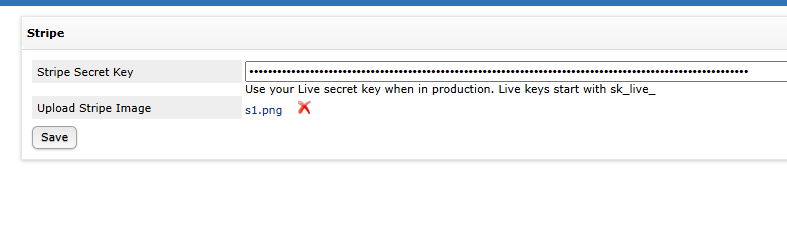
Navigate to your left-hand menu and select Settings > Stripe.
Locate the Stripe Secret Key field.
Enter your live Stripe API key into the text box. Note: To ensure you are in production mode and ready to accept real payments, your key must start with
sk_live_.Use the Upload Stripe Image field to add a custom "Pay Now" graphic.
Click the Save button.
Part 2: Customising Redirect Settings
In the left-hand menu under the Stripe category, click on Redirect Settings.
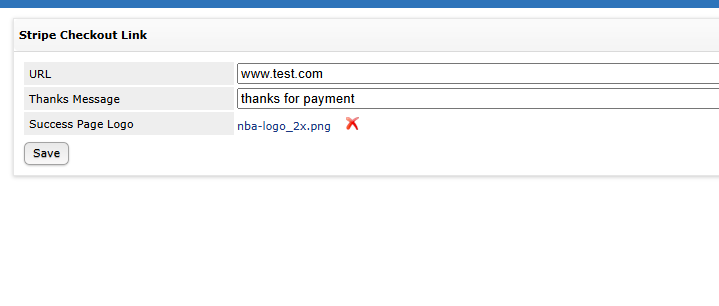
Fill out the details in the Stripe Checkout Link section:
URL: Enter the website address where customers should be redirected after a successful payment (e.g., your company homepage).
Thanks Message: Type a brief confirmation message that customers will see (e.g., "Thanks for your payment").
Success Page Logo: Upload your business logo to personalise the checkout success page.
Click the Save button to apply your changes.
See Guides for adding link to your Invoice PDF or Email: