
Feature Overview: Custom Dates
Hexihub now supports Custom Dates, giving you greater flexibility to track specific timelines within your workflow. This feature allows you to create date fields with custom titles and configurable default settings. You can choose to set a specific date range or leave fields blank for manual entry later.
How to Configure Custom Dates
To start adding or editing custom dates:
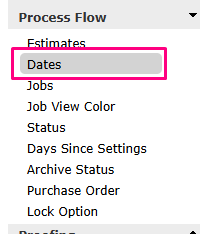
Navigate to Settings > Process Flow > Dates.
From here, you can activate new date fields and customise their settings.
Enabling Dates
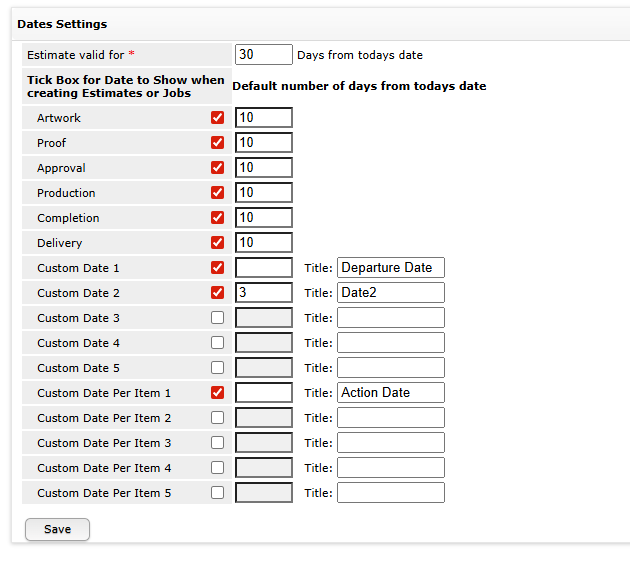
- Enabling a date (tickbox) will show the date field when createing a Estimate/job
- Enabling a Date Per Item (tickbox) will show the date within item within an Estimate or Job
Setting Default Values
One of the key benefits of Custom Dates is the ability to control default entries:
Manual Entry (Blank): By not entering a default number of days, the field remains blank until a user manually updates it. This is ideal for dates that cannot be predicted in advance.
Automatic Entry (Offset): You can set a default number of days to automatically calculate a date based on a trigger (e.g., 3 days after an Estimate).
Configuration Examples
Below are two examples of how Custom Dates can be utilised in your workflow:
Field Name Configuration Behavior Use Case Departure Date Default Days: Left blank The field appears blank on the job. Users manually update this date only when the item actually departs the warehouse. Followup Date Default Days: Set to 3Automatically sets the date to 3 days after the Estimate Date. Reminds the Estimate Team to follow up with the client at a specific interval. Action Date Default Days: Left blank The field appears blank on the job. Users manually update this date only when the item actually departs the warehouse. Integrating Custom Dates
Once your Custom Dates are created, you can incorporate them into other areas of Hexihub:
Views: Add custom date columns to your main grids. Customising Views
Templates: Insert custom dates into your document templates. An Overview of Templates
Order Manager (eStores): Display custom dates on your order manager screen.