
Overview
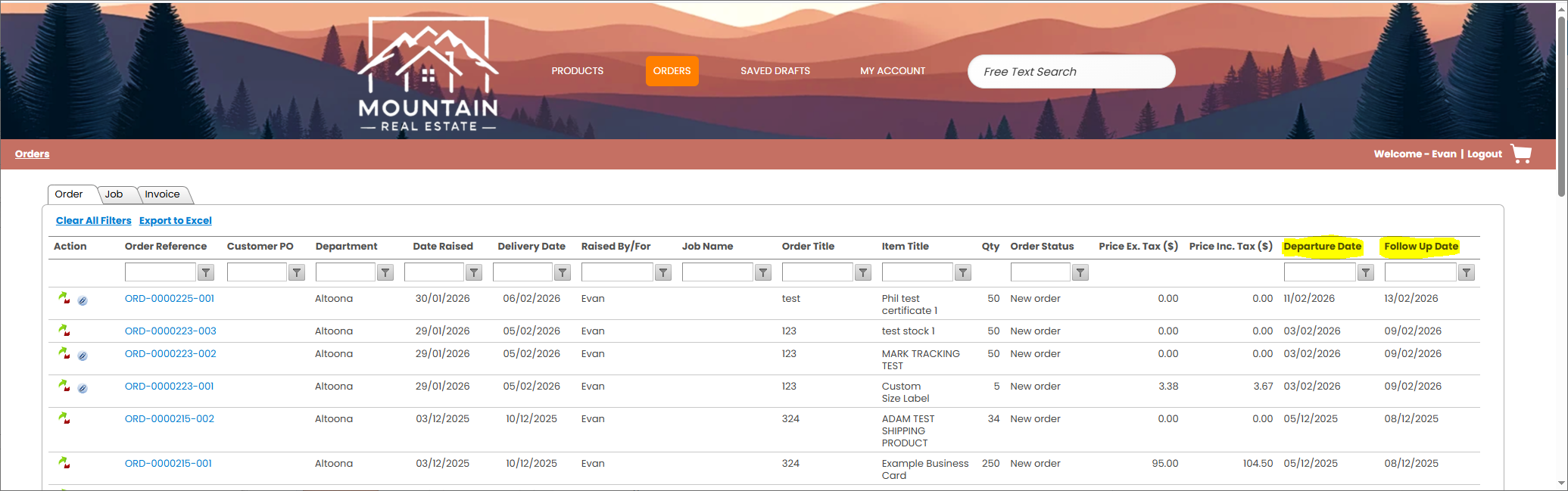
Hexicom allows you to enable additional custom date fields within the MIS. Once these fields are turned on, they can also be displayed in your eStores — both B2B and B2C — so customers can see important date information directly from their Order Manager screen.
This is helpful for showing things like:
- Internal due dates
- Production or dispatch dates
- Approval deadlines
- Custom workflow milestones
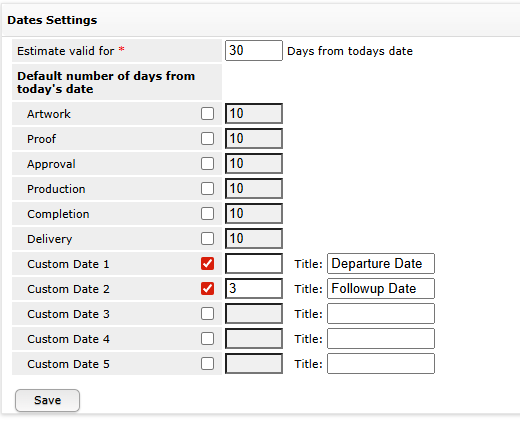
Step 1 – Turn On Additional Custom Date Fields in the MIS
Before these dates can appear in your eStore, they must first be enabled in the MIS.
Follow the guide below to enable additional custom date fields:
Guide: https://hexicomsupport.freshdesk.com/support/solutions/articles/24000102414
Once enabled, these fields become available on jobs and orders in the MIS and can then be made visible to customers in both B2B and B2C stores.
Step 2 – Make Custom Date Fields Visible in the eStore
After enabling the date fields in the MIS, you must turn them on in your eStore settings so customers can see them.
Navigation
- Click the Settings Wheel
- Go to ePrint eStore
- Select Ordering Process
- Click Ordering Process again
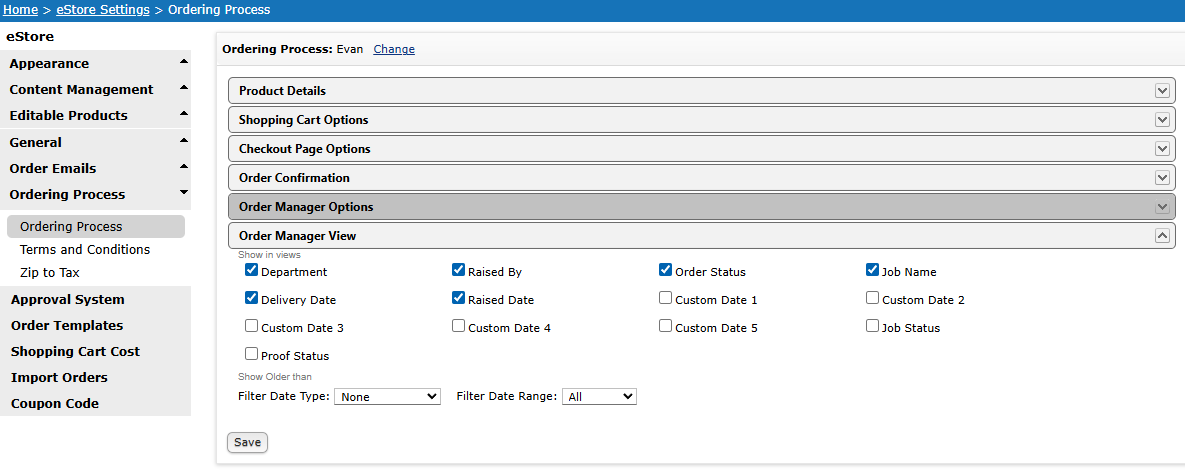
- Open Order Manager View
Step 3 – Enable the Date Columns
Inside Order Manager View, you will see a list of available columns. Tick the checkbox next to each custom date field you want to display to customers.
You can also choose to show additional columns such as:
- Department
- Raised By
- Order Status
- Job Name
- Delivery Date
- Raised Date
- Job Status
- Proof Status
This allows you to customise exactly what customers see when viewing their orders, whether they are using a B2B portal or a B2C store.
Step 4 – Configure the Date Filter Range
In the Filter Date Type section, you can control how far back the Order Manager displays records.
You can choose to show:
- Orders
- Jobs
- Invoices
And limit the visible range to:
- 1 Month
- 2 Months
- 3 Months
- 6 Months
- 1 Year
- 2 Years
- 3 Years
This helps keep the Order Manager clean and relevant by hiding older records customers don’t need to access regularly.
Result
Once these settings are saved:
- Your custom date fields will appear in the Order Manager for both B2B and B2C eStores
- Customers gain better visibility into timelines and job progress
- You maintain full control over which information is visible and how far back records are shown
This feature is ideal for businesses that want to improve transparency around delivery dates, approvals, and production milestones without needing to manually communicate updates.