
Overview
The Checkout Page Options section allows you to control what information customers see and enter during the checkout process in your eStore. These settings apply to both B2B and B2C stores and let you decide which fields are visible, which are required, and how addresses and delivery dates are handled.
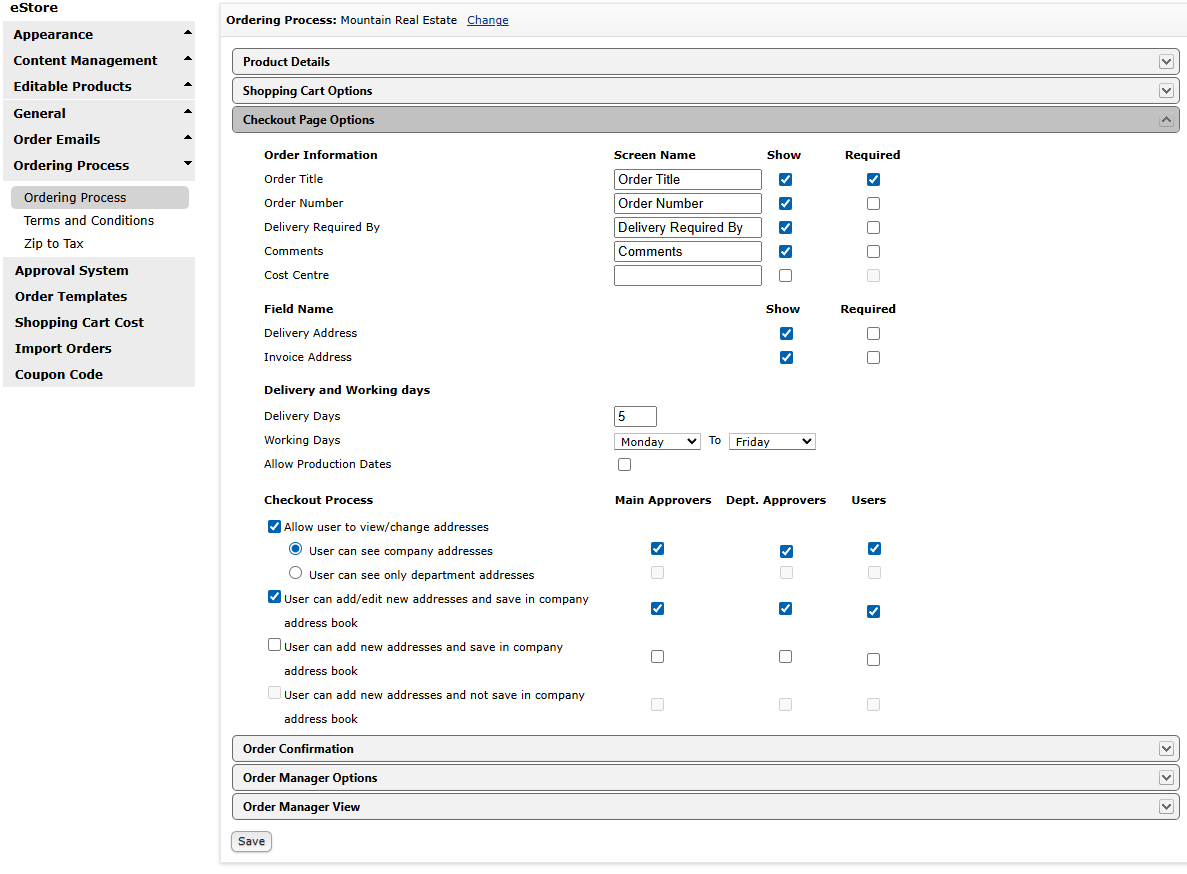
How to Access Checkout Page Options
- Click the Settings Wheel
- Go to ePrint eStore
- Select Ordering Process
- Click Ordering Process again
- Expand Checkout Page Options
Order Information Fields
This section controls the top-level information a customer can enter when placing an order.
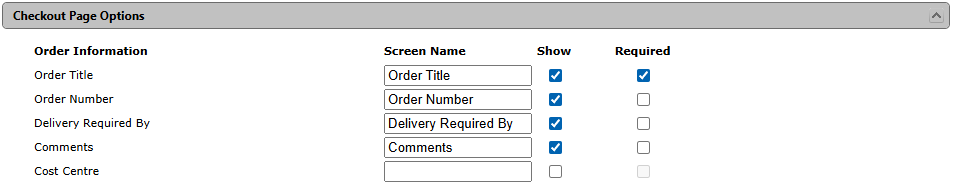
Available Fields
- Order Title – A custom title the customer can assign to the order.
- Order Number – Allows the customer to enter their own reference number or PO number.
- Delivery Required By – Lets the customer select a requested delivery date.
- Comments – A free-text notes field for additional instructions.
- Cost Centre – Typically used by larger organisations to track internal billing or departments.
Screen Name
You can rename the label that appears to the customer by editing the Screen Name box.
Show
Tick Show if you want the field visible to customers.
Required
Tick Required if the customer must fill in that field before checkout can be completed.
Address Fields
These determine which address types appear at checkout.

- Delivery Address – Controls whether customers can choose or edit the delivery address.
- Invoice Address – Controls whether customers can select or modify the billing address.
Each address field can also be marked as Required if needed.
Delivery and Working Days
This section controls how delivery timing is calculated and displayed.

Delivery Days
- The number entered here defines the standard turnaround time.
- This can be used by the system to estimate delivery or production timelines.
Working Days
- Choose which days of the week count as business days.
- Example: Monday to Friday.
Allow Production Dates
When enabled, customers may be shown or allowed to select production-related dates depending on your configuration.
Checkout Process – Address Permissions
This section determines what customers are allowed to do with addresses during checkout.
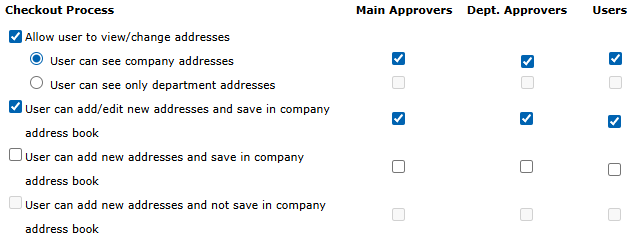
Allow User to View / Change Addresses
When enabled, customers can interact with address fields at checkout.
Options
- User can see company addresses – Customer can select from all saved company addresses.
- User can see only department addresses – Customer is restricted to addresses assigned to their department.
Address Creation Options
- User can add/edit new addresses and save in company address book – Customer can create new addresses and store them permanently.
- User can add new addresses and save in company address book – Customer can only add new addresses, not edit existing ones.
- User can add new addresses and not save in company address book – Customer can use a one-time address that is not stored.
Permission Columns
On the right side you will see permission checkboxes for:
- Main Approvers
- Department Approvers
- Users
These allow you to control which role types are allowed to perform the actions above.
Best Practice Tips
- B2C Stores: Keep fields minimal to reduce checkout friction.
- B2B Stores: Enable Order Number, Cost Centre, and Delivery Required By for better client control.
- Use Required sparingly; too many mandatory fields can slow checkout.
- Restrict address editing if customers frequently input incorrect shipping details.
Result
Once configured, the checkout page will reflect exactly the information and permissions you’ve chosen, helping you balance:
- Customer flexibility
- Internal order accuracy
- Address control
- Production scheduling visibility
This section is one of the most important areas for tailoring the ordering experience to match how your business operates.