Track Aging with Status & Email Days
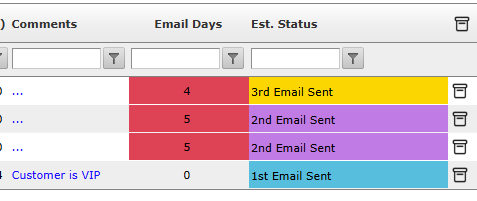
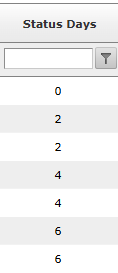
We’ve introduced two new columns—Status Days and Email Days—to help you identify stalled records at a glance. These columns calculate the time elapsed since the last activity, allowing you to stay on top of your follow-ups without manual tracking.
What are these columns?
Status Days: Displays the number of days since the record's "Status" was last updated.
Email Days: Displays the number of days since the last outgoing email was sent from the record.
Setting Up Visual Reminders
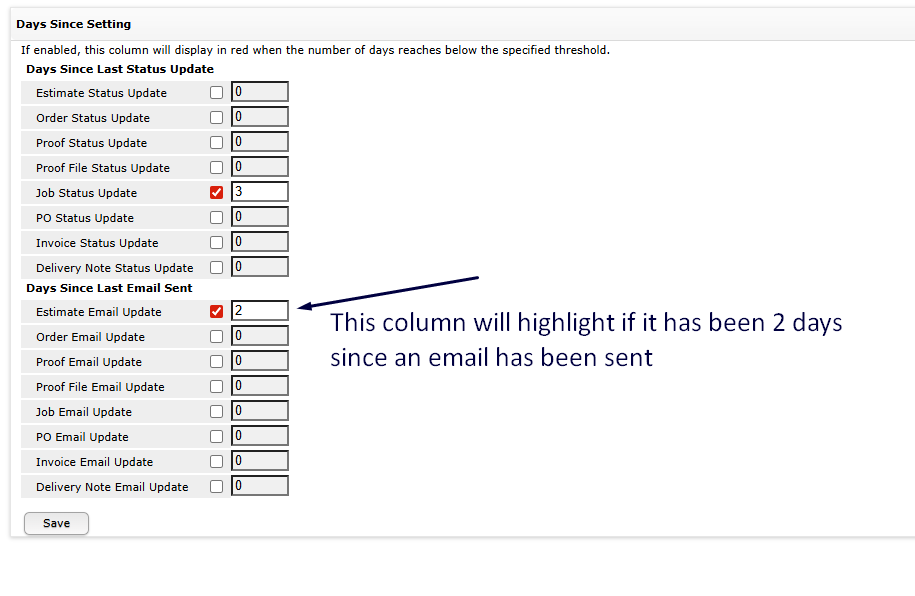
You can configure these columns to "alert" you by highlighting when a specific threshold is met. This is perfect for ensuring no estimates or jobs sit idle when they should be followed up.
To enable reminders:
Navigate to the Settings page.
Go to Process Flow > Days Since Settings.
Check the Enable Reminder tick box for the desired column.
Enter the Amount of Days for your threshold (e.g., 5 days).
Save Changes. Once reached, the column will highlight in your view, signaling that action is required.