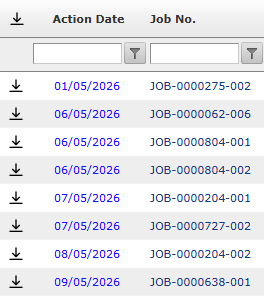
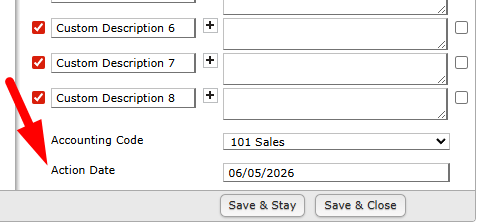
Set a Date per item to help keep track of your actionable dates. This date is per item in the job and acts independently. Even with complete multi item jobs, you can remain on task. See example below with a custom date per line item "Action Date"
How to Configure Custom Dates
To start adding or editing custom dates:
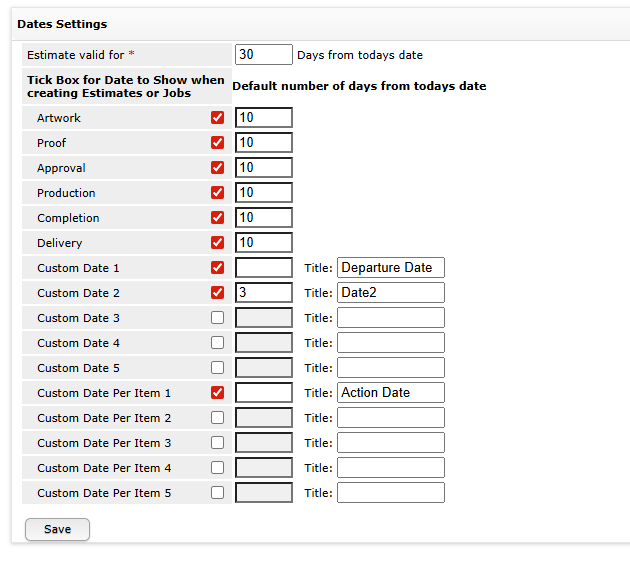
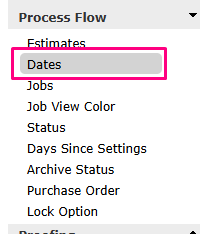
Navigate to Settings > Process Flow > Dates.
From here, you can activate new date fields and customise their settings.
Enabling Dates
- Enabling a Date Per Item (tickbox) will show the date within item within an Estimate or Job
Setting Default Values
One of the key benefits of Custom Dates is the ability to control default entries:
Manual Entry (Blank): By not entering a default number of days, the field remains blank until a user manually updates it. This is ideal for dates that cannot be predicted in advance.
Automatic Entry (Offset): You can set a default number of days to automatically calculate a date based on a trigger (e.g., 3 days after an Estimate).