
Overview
The Clickable Links feature allows you to add up to five clickable links to your PDF and Email templates. Each clickable link can contain:
- Link Text only
- An Image only
- Both a Link Text and an Image
Important Notes
- The Edit checkbox must be selected before any link details can be entered or modified.
- A valid Link URL is required for the clickable link to function.
- Links can be displayed as text, images, or both.
- To have clickable links and images added to your templates, contact support@hexicomsoftware.com.
Adding a Clickable Link
Step 1: Open the Clickable Links Section
Navigate to the Clickable Links setup area within your template settings.
You will see up to five available link positions:
- Clickable URL 1
- Clickable URL 2
- Clickable URL 3
- Clickable URL 4
- Clickable URL 5
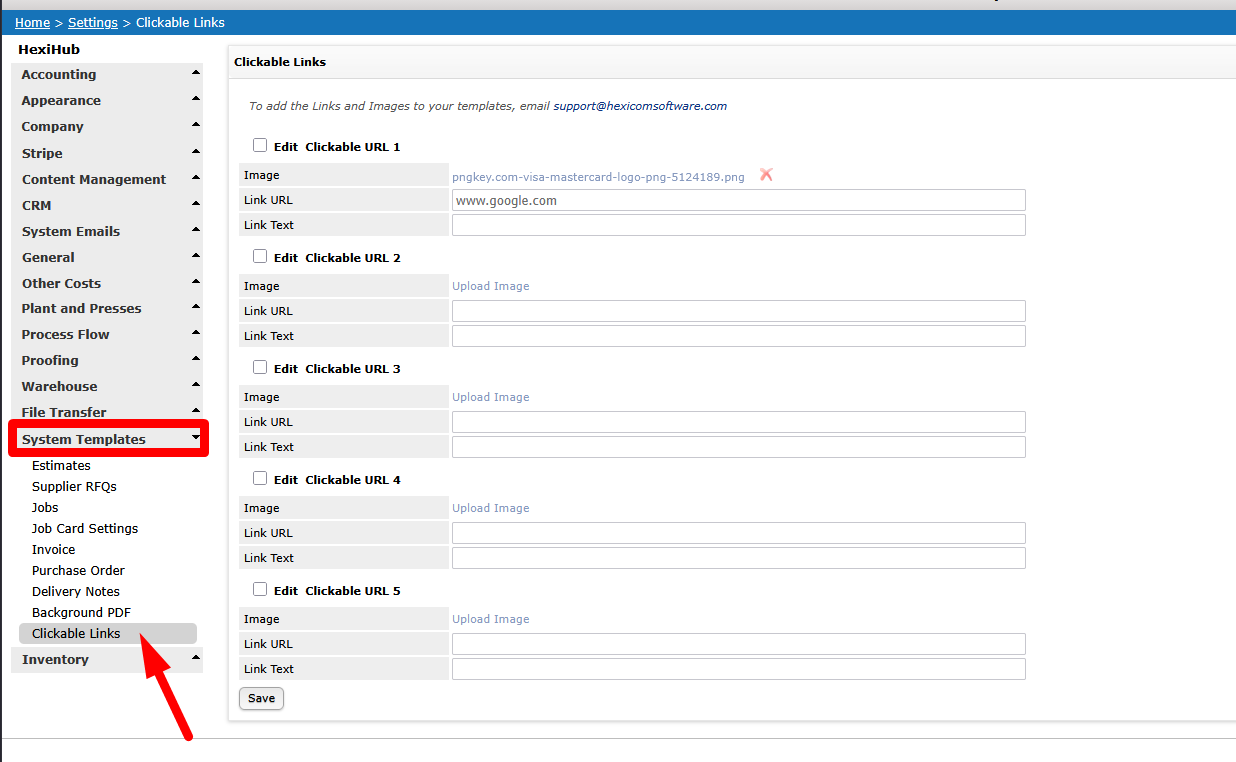
Step 2: Enable Editing
- Tick the Edit checkbox next to the Clickable URL you wish to configure.
- The fields for that link will become available for editing.

Step 3: Add an Image (Optional)
- Select Upload Image.
- Browse to the image you wish to use.
- Upload the image.
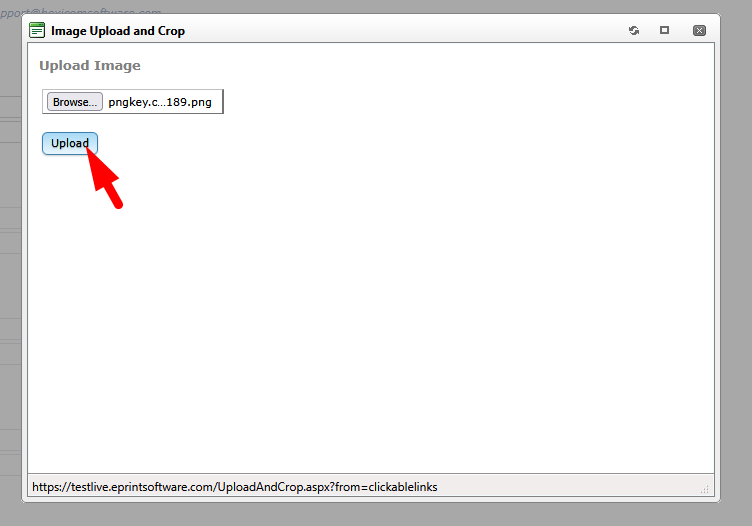
The image can be used on its own or together with link text.
Step 4: Enter the Link URL
- In the Link URL field, enter the website address you want users to open.
- Ensure the URL is correct and includes the appropriate prefix where required.
https://www.companywebsite.com

Step 5: Enter Link Text (Optional)
- In the Link Text field, enter the text that will be displayed to users.
- This text will appear as a clickable hyperlink.

Step 6: Save Your Changes
- Repeat the process for any additional clickable links required.
- Select Save to store your changes.
Configuration Examples
Text Link Only
| Field | Value |
|---|---|
| Image | Leave blank |
| Link URL | https://www.companywebsite.com |
| Link Text | Visit Our Website |
Image Link Only
| Field | Value |
|---|---|
| Image | Upload image |
| Link URL | https://www.companywebsite.com |
| Link Text | Leave blank |
Image and Text Link
| Field | Value |
|---|---|
| Image | Upload image |
| Link URL | https://www.companywebsite.com |
| Link Text | Visit Our Website |
Adding Links to Templates
Once your clickable links and images have been configured, email support@hexicomsoftware.com to have the links and images added to your PDF and Email templates.