
In order to use the warehouse module, you will need to begin by recording the details of the storage location where stock is held, this may be a large warehouse or a stock room.
The video will guide you through the steps, or use the details below to create the location settings.
Note: The warehouse and it must be configured by the system administrator.
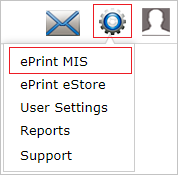
1. Click the Settings cog (top right corner), then select ePrint MIS.
The window is arranged with a navigation pane on the left-hand side of the screen.
2. Click Warehouse.
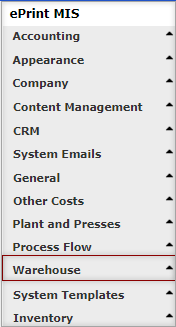
There are 3 settings available within this location;
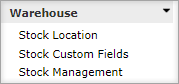
| Stock Location | Used to nominate the potential address locations where the stock is to be stored. |
| Stock Custom Fields | The default label for the warehouse locations are Location, Lot #, Aisle, Bin, Shelf, Pallet. If these labels are not suitable these can be edited to reflect the locations in your own stock location. |
| Stock Management | The workflow of stock management can be defined using this location. |
3. From the left navigation select, select Stock Location, then select Add New Record.
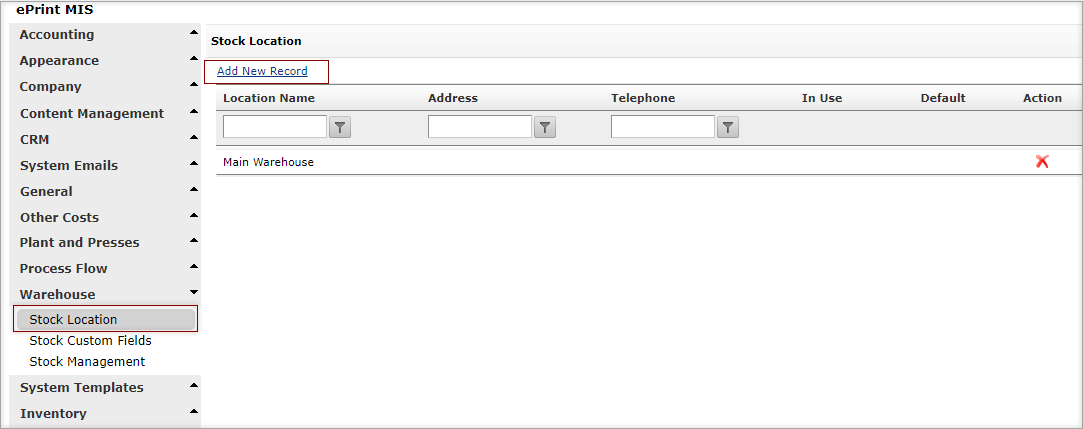
4. Complete the requested details, Location Name (the only mandatory field), then click Save.
Note: If this is also the Default Location click the provided tick-box.
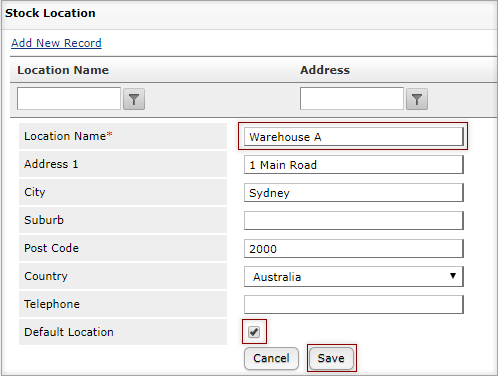
If there are more locations, continue to add locations as required by repeating steps 3-4 above.
Creating Warehouse Location Fields
After specifying the location, you can then edit the Stock Custom Fields, this is optional however can be useful to reflect the locations within your warehouse. There are 6 custom fields available to use in association with the warehouse, these are used to indicate the specific location of where the stock is located.
1. From the left navigation pane, under Warehouse, select Stock Custom Fields.
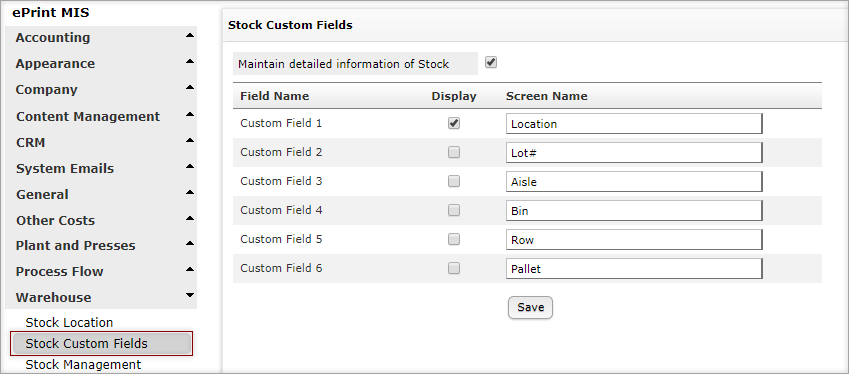
2. To use a custom field, ensure there is a tick, in the Display column next to the desired field, and ensure the Screen Name is indicative of the location, then click Save.
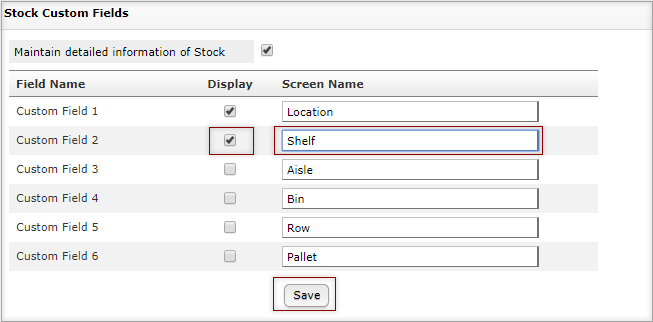
Once the location and custom fields are set you can then adjust the workflow to suit your preferred method of managing the stock.
Further Information
- The Warehouse Module
- Warehouse Settings and Defaults
- Warehouse Location Settings
- Setting and Changing the Status
- Creating a Stock Product
- Creating an Estimate for a Stock Product
- Warehouse Workflow Scenarios (Replenishment Jobs)
If you have any further questions, please contact Support.